How to secure communication with Nexus OSS
Here in this article we will try to configure Nexus OSS repository manager server itself to serve over a secure HTTPS channel.
Test Environment
- Fedora 41 server
- Nexus 3.91.1
- Postgres 16.11
What is Jetty Server
Sonatype Nexus Repository uses Eclipse Jetty as its embedded web server to manage HTTP(S) requests, with versions 3.81+ upgrading to Jetty 12 for improved security. It operates with a default maximum of 400 threads and configuration is managed within the etc/jetty/ directory.
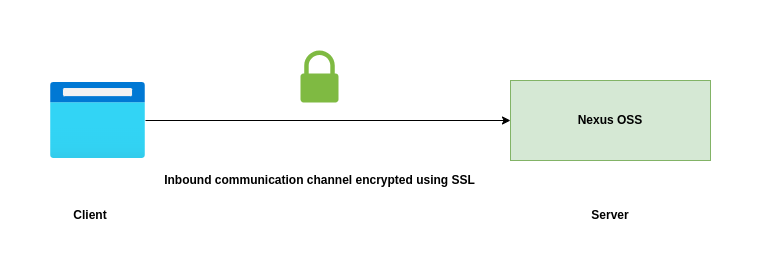
High Level Architecture
If you are interested in watching the video. Here is the YouTube video on the same step by step procedure outlined below.
Procedure
Step1: Ensure Nexus OSS installed and running
As a first step ensure that you have a instance of Nexus OSS installed and running in your system. Follow “How to setup Nexus OSS repository with Postgres database on Fedora” for the same.
Step2: Create a Java keystore file
Here we are going to use keytool to generate a public private keypair certificates stored in java keystore format.
admin@linuxser:~$ mkdir -p /home/admin/sonatype-work/nexus3/etc/ssl
admin@linuxser:~$ cd /home/admin/sonatype-work/nexus3/etc/ssl

admin@linuxser:~/sonatype-work/nexus3/etc/ssl$ keytool -genkeypair -keystore keystore.jks -storepass admin@1234 -alias linuxser.stack.com  -keyalg RSA -keysize 2048 -validity 5000 -keypass admin@1234  -dname 'CN=linuxser.stack.com, OU=Sonatype, O=Sonatype, L=Unspecified, ST=Unspecified, C=US'  -ext 'SAN=DNS:linuxser.stack.com,DNS:*.stack.com'
Now, let’s list the entries within the keystore.jks file using keytool.
admin@linuxser:~/sonatype-work/nexus3/etc/ssl$ keytool --list --keystore ./keystore.jks
Enter keystore password:
Keystore type: PKCS12
Keystore provider: SUN

Your keystore contains 1 entry

linuxser.stack.com, May 4, 2026, PrivateKeyEntry,
Certificate fingerprint (SHA-256): 31:15:E6:01:39:D6:12:71:9C:21:4A:01:7E:1F:A5:D7:B9:12:E0:3D:5B:34:34:11:10:C7:C2:DE:F2:49:C9:28
We can extract the public certificate from this keystore as follows for later use.
admin@linuxser:~/sonatype-work/nexus3/etc/ssl$ cat linuxser.crt
-----BEGIN CERTIFICATE-----
MIIDwzCCAqugAwIBAgIEAXV24jANBgkqhkiG9w0BAQsFADB8MQswCQYDVQQGEwJV
UzEUMBIGA1UECBMLVW5zcGVjaWZpZWQxFDASBgNVBAcTC1Vuc3BlY2lmaWVkMREw
DwYDVQQKEwhTb25hdHlwZTERMA8GA1UECxMIU29uYXR5cGUxGzAZBgNVBAMTEmxp
bnV4c2VyLnN0YWNrLmNvbTAeFw0yNjA1MDQxMzEzMzRaFw00MDAxMTExMzEzMzRa
MHwxCzAJBgNVBAYTAlVTMRQwEgYDVQQIEwtVbnNwZWNpZmllZDEUMBIGA1UEBxML
VW5zcGVjaWZpZWQxETAPBgNVBAoTCFNvbmF0eXBlMREwDwYDVQQLEwhTb25hdHlw
ZTEbMBkGA1UEAxMSbGludXhzZXIuc3RhY2suY29tMIIBIjANBgkqhkiG9w0BAQEF
AAOCAQ8AMIIBCgKCAQEA1bC8azA/UkBJ805lK3Wu6qoUzQPTZE0yGosDZmOrSZZh
U6CCaz92jM8Tq1kvubNtLif3E+XjQQg8q6J/jBY5Qp2C5VyRCAlVlPWQt9GPeXEI
EgRsUH/6Ihxi4FhrPyhoYaZ/nVx07H87c0HKVPPWXPFKTk5KznsTw5HvqH/gsoc5
AveilEjv4krspYbHIHGbga5s6ei3EKCRjPmfFwYbuCP6O2m40EXc8/FBXGyfhc0r
nsCNU6KVKWNuaUy+QIRUCEXWJw0lDzeJL0Vhq3JTJJ1nu4pCR6sSotbQ/gYLbLd/
blv7tTyjouQu7VjuYoKg9C3Tz6lf8EPFkAlS/TStKQIDAQABo00wSzAdBgNVHQ4E
FgQUA566fiqjoYwPqBr//S2/iyLglVgwKgYDVR0RBCMwIYISbGludXhzZXIuc3Rh
Y2suY29tggsqLnN0YWNrLmNvbTANBgkqhkiG9w0BAQsFAAOCAQEAtRXncOox40PR
L6NgQR5pXHM+HLGk8N3sKR+fupmzHTwBjsf82VdiJmEIdi3DxIehSfxN4MgQgE82
WoX8zk8aVx37di0b8Tb21GnXaJnv83gmm1yF4aSY7GLlMRyz5oYmyMLgl5pLkXKZ
yxAVletZNEt3kJaZ1qogXED2gXvHOSlaK7LietlgaC9x3ioiA0byDzSOlAm9LH9c
PZcKvFzF5lIYNsQdLT4NW+vePtMKhF32JGgTgcPBFnziaGUU8yN+UEnbICuaSfZ4
LZJVrqFAuVuMD62KV+gd7CkrBI5Dwt9X09LLKUeQ9eA7skt5IIScWaUCwKMNop0B
W6/TCBDY8A==
-----END CERTIFICATE-----
Step3: Update nexus.properties file
Here we are going to update the nexus.properties to configure the nexus ssl port and also the xml configuration file to load from which the keystore location and password can be identified for establishing secure communication channel.
admin@linuxser:~/sonatype-work/nexus3/etc$ cat nexus.properties
# Jetty section
application-port-ssl=8443
nexus-args=${jetty.etc}/jetty.xml,${jetty.etc}/jetty-http.xml,${jetty.etc}/jetty-https.xml,${jetty.etc}/jetty-requestlog.xml
ssl.etc=${karaf.data}/etc/ssl
Step4: Update jetty server configuration file
Let’s now update the “jetty-https.xml” with the password that we specified for the keystore and key entry. Please note the three places where i updated the password as “admin@1234”.
admin@linuxser:~$ cd nexus-3.91.1-04/etc/jetty/
admin@linuxser:~/nexus-3.91.1-04/etc/jetty$ cat jetty-https.xml
...
    <Set name="KeyStorePassword">admin@1234</Set>
    <Set name="KeyStoreType" property="jetty.sslContext.keyStoreType" />
    <Set name="KeyStoreProvider" property="jetty.sslContext.keyStoreProvider" />
    <Set name="KeyManagerPassword">admin@1234</Set>
    <Set name="TrustStorePath">
      <Call name="resolvePath" class="org.eclipse.jetty.xml.XmlConfiguration">
        <Arg><Property name="ssl.etc"/></Arg>
        <Arg><Property name="jetty.sslContext.keyStorePath" default="keystore.jks" /></Arg>
      </Call>
    </Set>
    <Set name="TrustStorePassword" property="jetty.sslContext.trustStorePassword">admin@1234</Set>
    <Set name="TrustStoreType" property="jetty.sslContext.trustStoreType" />
    <Set name="TrustStoreProvider" property="jetty.sslContext.trustStoreProvider" />
    <Set name="EndpointIdentificationAlgorithm" property="jetty.sslContext.endpointIdentificationAlgorithm" />
    <Set name="NeedClientAuth" property="jetty.sslContext.needClientAuth" />
    <Set name="WantClientAuth" property="jetty.sslContext.wantClientAuth" />
    <Set name="useCipherSuitesOrder" property="jetty.sslContext.useCipherSuitesOrder" />
    <Set name="sslSessionCacheSize" property="jetty.sslContext.sslSessionCacheSize" />
    <Set name="sslSessionTimeout" property="jetty.sslContext.sslSessionTimeout" />
    <Set name="RenegotiationAllowed" property="jetty.sslContext.renegotiationAllowed" />
    <Set name="RenegotiationLimit" property="jetty.sslContext.renegotiationLimit" />
    <Set name="SniRequired" property="jetty.sslContext.sniRequired" />
...
Step5: Restart Nexus OSS service
It’s time to restart the nexus oss service for the ssl changes to take effect.
admin@linuxser:~/nexus-3.91.1-04/bin$ ./nexus stop
admin@linuxser:~/nexus-3.91.1-04/bin$ ./nexus start
Step6: Validate Nexus OSS over HTTPS
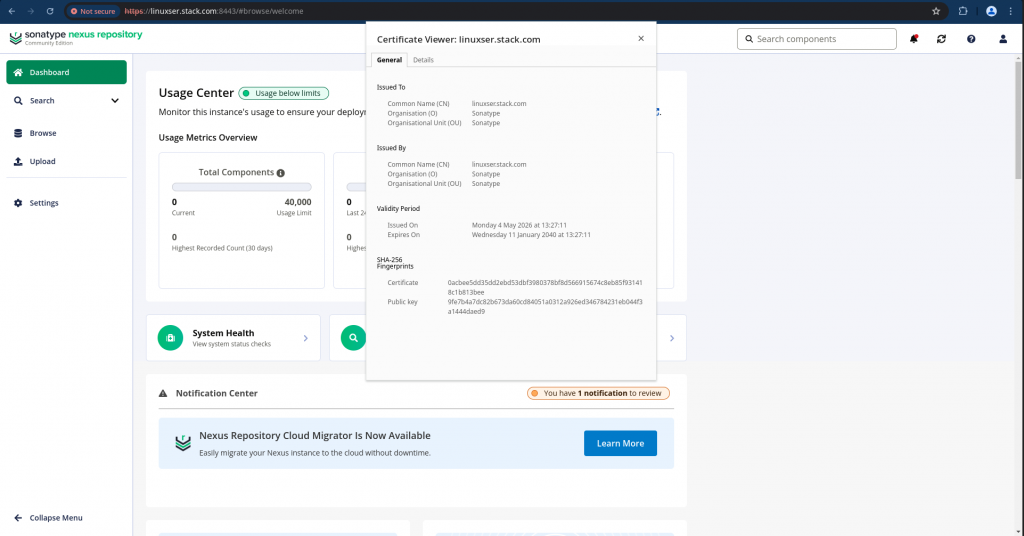
We can now access our nexus oss service over a secure https channel listening on port 8443 and verify the self sign certificate as shown below..
URL: https://linuxser.stack.com:8443/
Hope you enjoyed reading this article. Thank you..

Related Posts