How to setup Open WebUI to interact with local AI models

Here in this article we will try to setup Open WebUI web interface that provides a ChatGPT-like experience for local AI models.
Test Environment
- Fedora 41 server
- Docker v28.5.2
- Docker Compose v5.1.0
What is Open WebUI
Open WebUI is a powerful, self-hosted, open-source AI platform designed to provide a rich, user-friendly interface for interacting with large language models (LLMs). It allows users to chat with both local models (via Ollama) and cloud models (like OpenAI or Anthropic) in a secure, private, ChatGPT-like environment.
If you are interested in watching the video. Here is the YouTube video on the same step by step procedure outlined below.
Procedure
Step1: Ensure Docker and Docker compose installed
As a pre-requisite step ensure that docker and docker-compose is installed and running.
admin@linuxser:~$ docker --version
Docker version 28.5.2, build ecc6942

admin@linuxser:~$ docker compose version
Docker Compose version v5.1.0
Step2: Ensure Docker model runner installed and running
Here you need to ensure that you have docker model runner installed and have some AI models locally downloaded.
Follow “How to setup Docker model runner on Fedora OS” for the same.
Step3: Create Docker compose file
Here we are going to setup Open WebUI service using docker compose file. As we have a huggingface model already download. For Open WebUI to download model configurations or metadata and pull updates or additional model files we will need to pass the HuggingFace API token as shown below.
The token is often optional but recommended for better reliability and access to the full Hugging Face ecosystem.
admin@linuxser:~$ mkdir openwebui
admin@linuxser:~$ cd openwebui/

admin@linuxser:~/openwebui$ cat docker-compose.yml
services:
  open-webui:
    image: ghcr.io/open-webui/open-webui:main

    ports:
      - "3000:8080"
    environment:
      - OLLAMA_BASE_URL=http://host.docker.internal:12434
      - WEBUI_AUTH=false
      - HF_TOKEN=hf_your_token
    extra_hosts:
      - "host.docker.internal:host-gateway"
    volumes:
      - open-webui:/app/backend/data

volumes:
  open-webui:
Step4: Start Open WebUI service
Let’s now start up the Open WebUI docker service as shown below.
admin@linuxser:~/openwebui$ docker compose up -d
[+] up 19/19
 ✔ Image ghcr.io/open-webui/open-webui:main Pulled                                                               531.0s
 ✔ Network openwebui_default                Created                                                              0.6s
 ✔ Volume openwebui_open-webui              Created                                                              0.0s
 ✔ Container openwebui-open-webui-1         Started
Step5: Validate Open WebUI service
Once the docker service is in healthy state, you can access the Open WebUI portal listening on port 3000 with your FQDN.
URL: http://linuxser.stack.com:3000
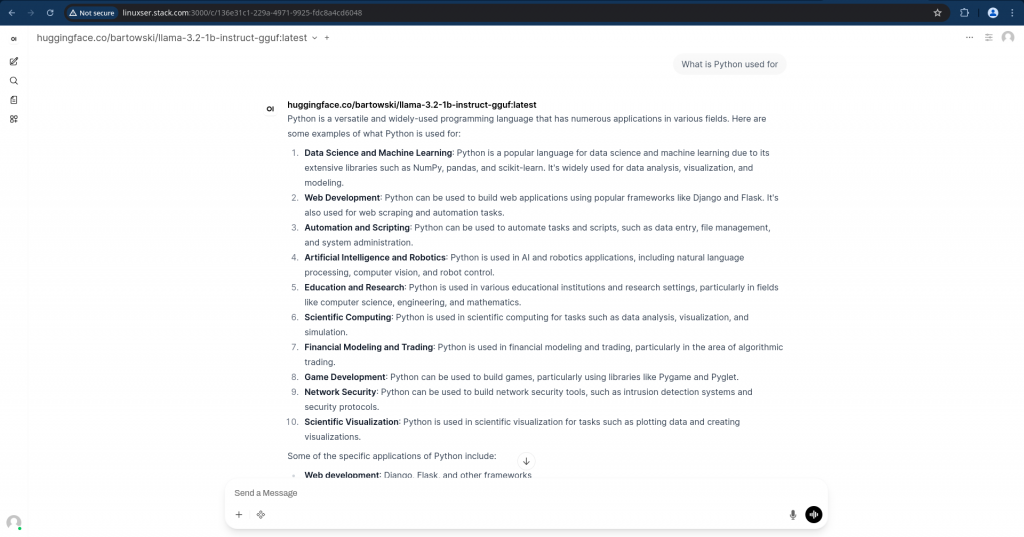
You can now chat with your model and get the responses as shown below locally on your system.
Hope you enjoyed reading this article. Thank you..



Related Posts