How to integrate VS Code editor with Docker model runner
Here in this article we will try to integrate VS Code editor with Docker model runner service running on a remote server to leverage local LLM models for code assistance.
Test Environment
- Fedora 41 server
- Docker v28.5.2
If you are interested in watching the video. Here is the YouTube video on the same step by step procedure outlined below.
Procedure
Step1: Ensure Docker model runner installed
Here we will ensure that we have Docker model runner installed and running on a remote server. Follow “How to setup Docker model runner on Fedora OS” to setup the same.
Also, instead of creating a bidirectional pipe, we will expose the Docker model runner through nginx reverse proxy as a recommended solution.
Step2: Ensure Nginx installed
As we want to access our docker model runner rest api through a reverse proxy we are installing nginx here to setup the same.
admin@linuxser:~$ sudo dnf install nginx
Step3: Configure Nginx
Let’s now configure nginx.conf in such a way that any requests for “/” context on port “80” are proxy passed to the upstream running at “localhost:12434” which is a docker model runner that we setup in our first step.
You can keep the default settings the same with just the server section updated as shown below. Ensure that you update the server_name with your FQDN.
admin@linuxser:~$ cat /etc/nginx/nginx.conf
...
server {
    listen 80;
    server_name linuxser.stack.com;

    location / {
        proxy_pass http://localhost:12434;

    # Increase these timeout values
    proxy_connect_timeout 600s;
    proxy_send_timeout 600s;
    proxy_read_timeout 600s;
    }

    # Optional: Disable buffering to allow streaming responses immediately
    proxy_buffering off;

    }
}
...
Ensure that port “80” is allowed by updating the firewall rules as shown below.
admin@linuxser:~$ sudo firewall-cmd --add-port=80/tcp --permanent
success
admin@linuxser:~$ sudo firewall-cmd --reload
success
Also as by default selinux is enabled in targeted mode, we need to update the boolean parameter as shown below to avoid the following connect() permission error.
Error:
2026/05/18 13:15:41 [crit] 4137#4137: *7 connect() to 127.0.0.1:12434 failed (13: Permission denied) while connecting to upstream, client: 192.168.122.150, server: linuxser.stack.com, request: "GET / HTTP/1.1", upstream: "http://127.0.0.1:12434/", host: "linuxser.stack.com"
admin@linuxser:~$ sudo setsebool -P httpd_can_network_connect on
Let’s now restart the nginx service for the changes to take effect.
admin@linuxser:~$ sudo systemctl restart nginx
Step4: Valide docker model runner remotely
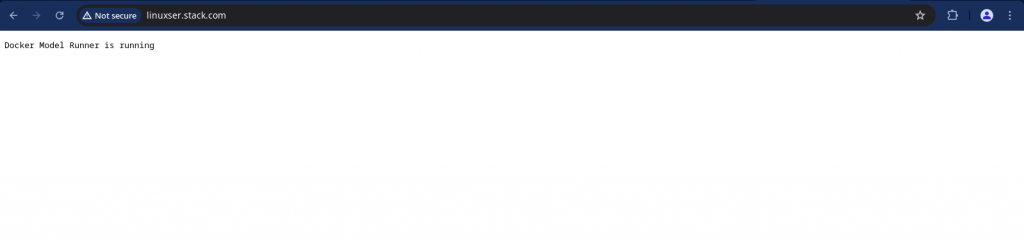
Now let’s try to access the following URL from a remote client machine to ensure that proxy pass is working as expected.
URL: http://linuxser.stack.com
Step5: Pull and Run Code Assistant model
Here we will pull Qwen2.5 Coder GGUF format assistant model for local usage and run it
admin@linuxser:~$ docker model pull hf.co/bartowski/Qwen2.5-Coder-1.5B-Instruct-GGUF
admin@linuxser:~$ docker model run --detach hf.co/bartowski/Qwen2.5-Coder-1.5B-Instruct-GGUF
Step6: Install Cline VSCode extension
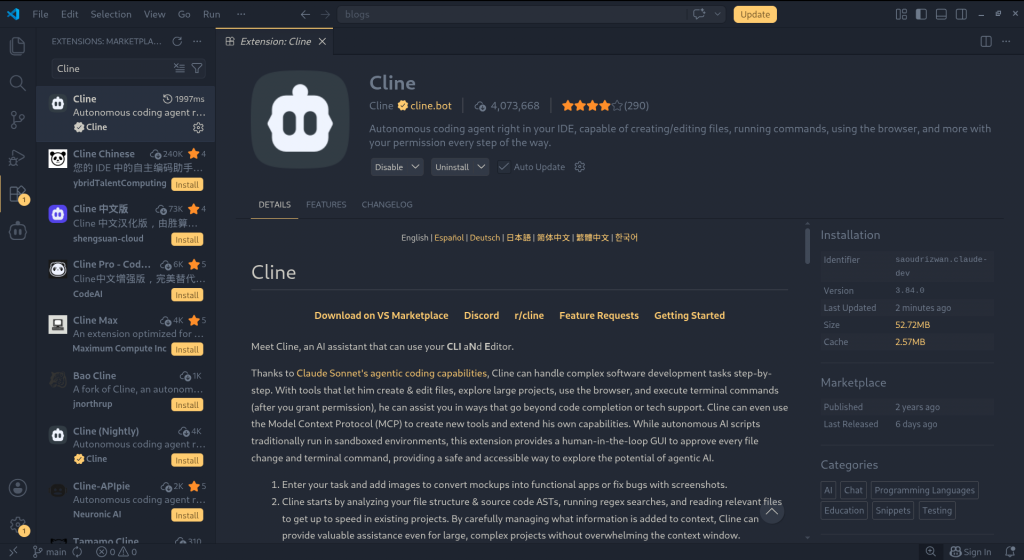
Here we are going to install CLine an autonomous coding agent right in your IDE, capable of creating/editing files, running commands, using the browser, and more with your permission every step of the way.
Now, let’s configure the extension by Ollama as the provider with the below settings as shown below.
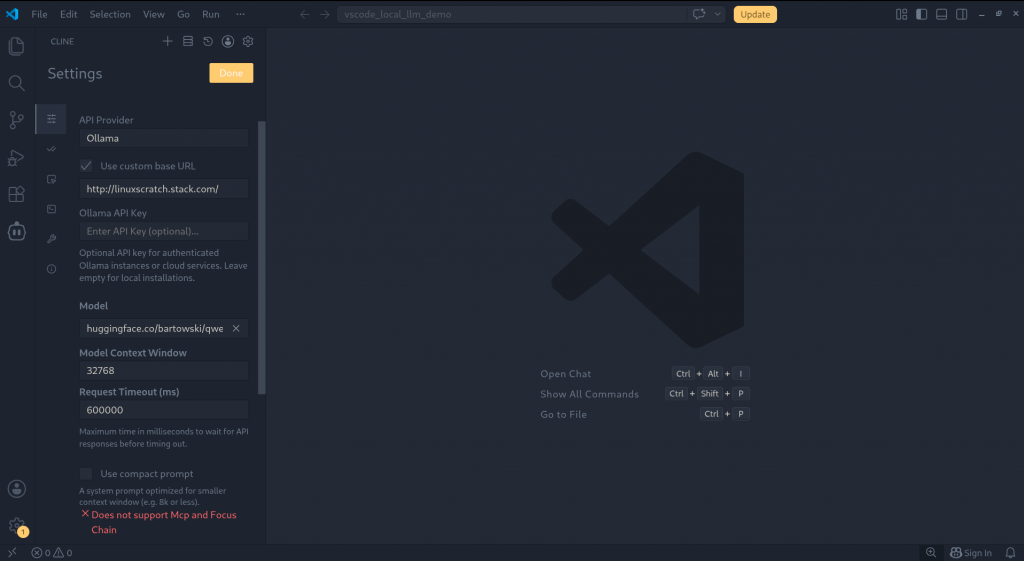
NOTE: Update Custom base url with your machine FQDN. Here it should have been http://linuxser.stack.com
Step7: Validate Cline Code assistant
We should now be able to use vscode with cline code assistant by using the local llm model as the backend.
Hope you enjoyed reading this article. Thank you..


Related Posts