Build and Install Hugo from Source

Here in this article we will try to build and install Hugo from source with extended and deploy features enabled.
Test Environment
- Fedora 44 server
What is Hugo
Hugo is a static site generator written in Go, optimized for speed and designed for flexibility. With its advanced templating system and fast asset pipelines, Hugo renders a complete site in seconds, often less.
Procedure
Step1: Ensure Git Installed
As a first step ensure that you have git installed. Git is used to version control the site that we will be generating.
# Install git
admin@fedser:~$ sudo dnf install git

# Verify git version
admin@linuxscratch:~$ git version
git version 2.55.0
Step2: Ensure Go Installed
Let’s install go which will be used to build and install Hugo from source code.
# Install Go
admin@fedser:~$ sudo dnf install golang

# Verify Go version
admin@linuxscratch:~$ go version
go version go1.26.5-X:nodwarf5 linux/amd64
Step3: Ensure GCC Installed
Here we will install gcc and g++ C compiler Hugo requires only if you are building or running the “Extended” version of Hugo.
# Install gcc and g++
admin@fedser:~$ sudo dnf install gcc gcc-c++

# Verify g++ version
admin@linuxscratch:~$ g++ --version
g++ (GCC) 16.1.1 20260515 (Red Hat 16.1.1-2)
Copyright (C) 2026 Free Software Foundation, Inc.
This is free software; see the source for copying conditions.  There is NO
warranty; not even for MERCHANTABILITY or FITNESS FOR A PARTICULAR PURPOSE.

# Verify gcc version
admin@linuxscratch:~$ gcc --version
gcc (GCC) 16.1.1 20260515 (Red Hat 16.1.1-2)
Copyright (C) 2026 Free Software Foundation, Inc.
This is free software; see the source for copying conditions.  There is NO
warranty; not even for MERCHANTABILITY or FITNESS FOR A PARTICULAR PURPOSE.
Step3: Install Extended/Deploy edition
Here we will be installing extended/deploy edition of Hugo. Before installing this edition ensure that you have C compiler such as GCC or Clang and then run the following command.
# Install Hugo with extended and deploy features
admin@linuxscratch:~$ CGO_ENABLED=1 go install -tags extended,withdeploy github.com/gohugoio/hugo@latest
Step4: Update PATH env variable
Now that Hugo is installed, we will need to update the “PATH” environment variable with Go binary directory as shown below.
# Update path with go binary path
admin@linuxscratch:~$ cat ~/.bashrc | grep -A 2 "Hugo"
# Hugo
export PATH=$PATH:$HOME/go/bin
Step5: Validate Hugo
Let’s validate the version of Hugo that is installed.
# Verify Hugo version
admin@linuxscratch:~$ hugo version
hugo v0.164.0+extended+withdeploy linux/amd64 BuildDate=unknown
Step6: Create New Project
Here we are going to create a new project, install a theme and update the project configuration file to use the installed theme.
# Create a new Hugo project
admin@linuxscratch:~/hugo_demo$ hugo new project quickstart
Congratulations! Your new Hugo project was created in /home/admin/hugo_demo/quickstart.

Just a few more steps...

1. Change the current directory to /home/admin/hugo_demo/quickstart.
2. Create or install a theme:
   - Create a new theme with the command "hugo new theme <THEMENAME>"
   - Or, install a theme from https://themes.gohugo.io/
3. Edit hugo.toml, setting the "theme" property to the theme name.
4. Create new content with the command "hugo new content <SECTIONNAME>/<FILENAME>.<FORMAT>".
5. Start the embedded web server with the command "hugo server --buildDrafts".

See documentation at https://gohugo.io/.
# Initialize Project
admin@linuxscratch:~/hugo_demo$ cd quickstart/
admin@linuxscratch:~/hugo_demo/quickstart$ git init
admin@linuxscratch:~/hugo_demo/quickstart$ git submodule add https://github.com/gohugo-ananke/ananke themes/ananke
admin@linuxscratch:~/hugo_demo/quickstart$ echo "theme = 'ananke'" >> hugo.toml
admin@linuxscratch:~/hugo_demo/quickstart$ cat hugo.toml
baseURL = 'https://example.org/'
locale = 'en-us'
title = 'My New Hugo Project'
theme = 'ananke'
Step7: Launch Site
It’s time to launch the our new site using the Hugo development server bind to any network interface with default listen port “1313” and validate it as shown below.
# Launch Hugo site
admin@linuxscratch:~/hugo_demo/quickstart$ hugo server --bind 0.0.0.0
Here is the screenshot of the quickstart project.
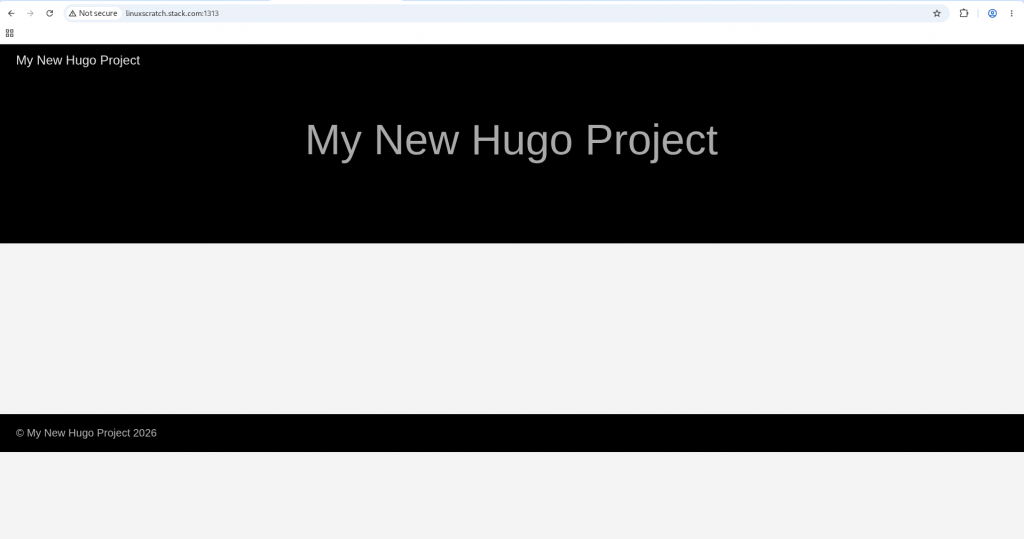
Hope you enjoyed reading this article. Thank you..



Related Posts