How to setup Amazon EventBridge to connect event driven applications
Here in this article we will provision an Amazon eventbridge pipe which can be used to collect, filter and transform events from service such as DynamoDB and send it to the target application such as SQS queue.
Test Environment
- AWS account
- AWS CLI
What is EventBridge
In a network of distributed systems, many systems, services or applications generate events. These distributed system can make use of these events to communicate with each other. Amazon EventBridge is a serverless service that uses these events to connect application components together, making it easier for to build scalable event-driven applications.
EventBridge provides simple and consistent ways to ingest, filter, transform, and deliver events so you can build applications quickly. There are two different workflows that can be built using EventBridge to process events.
- Event Buses: These are routers that receive events and delivers them to zero or more targets.
- Event Pipes: These are intended for point-to-point integrations; each pipe receives events from a single source for processing and delivery to a single target.
If you are interested in watching the video. Here is the YouTube video on the same step by step procedure outlined below.
Procedure
Step1: Ensure AWS Account and Non Root IAM user created
Ensure that you registered with AWS and created a root account which is used to manage billing, authentication and authorization control. Create a IAM user.
Follow “Setting up your AWS account” and “Create an IAM user in your AWS account” for the same.
Step2: Create Stack using Template
Here we are going to use a cloudformation template to create an EventBridge pipe that connects a stream from a DynamoDB table to an Amazon SQS queue. Every time a record is created or modified in the database table, the pipe sends the resulting event to the queue.
admin@fedser:eventbridge$ cat eventbridge-stack.yml
AWSTemplateFormatVersion: '2010-09-09'
Description: '[AWSDocs] EventBridge: pipes-get-started'
Parameters:
  SourceTableName:
    Type: String
    Default: pipe-example-source
    Description: Specify the name of the table to provision as the pipe source, or accept the default.
  TargetQueueName:
    Type: String
    Default: pipe-example-target
    Description: Specify the name of the queue to provision as the pipe target, or accept the default.
  PipeName:
    Type: String
    Default: pipe-with-filtering-example
    Description: Specify the name of the table to provision as the pipe source, or accept the default.
Resources:
  PipeSourceDynamoDBTable:
    Type: AWS::DynamoDB::Table
    Properties:
      AttributeDefinitions:
        - AttributeName: Album
          AttributeType: S
        - AttributeName: Artist
          AttributeType: S
      KeySchema:
        - AttributeName: Album
          KeyType: HASH
        - AttributeName: Artist
          KeyType: RANGE
      ProvisionedThroughput:
        ReadCapacityUnits: 10
        WriteCapacityUnits: 10
      StreamSpecification:
        StreamViewType: NEW_AND_OLD_IMAGES
      TableName: !Ref SourceTableName
  PipeTargetQueue:
    Type: AWS::SQS::Queue
    Properties:
      QueueName: !Ref TargetQueueName
  PipeTutorialPipeRole:
    Type: AWS::IAM::Role
    Properties:
      AssumeRolePolicyDocument:
        Version: '2012-10-17'
        Statement:
          - Effect: Allow
            Principal:
              Service: pipes.amazonaws.com
            Action: sts:AssumeRole
            Condition:
              StringLike:
                aws:SourceArn: !Join
                  - ''
                  - - 'arn:'
                    - !Ref AWS::Partition
                    - ':pipes:'
                    - !Ref AWS::Region
                    - ':'
                    - !Ref AWS::AccountId
                    - ':pipe/'
                    - !Ref PipeName
                aws:SourceAccount: !Ref AWS::AccountId
      Description: EventBridge Pipe template example. Execution role that grants the pipe the permissions necessary to send events to the specified pipe.
      Path: /
      Policies:
        - PolicyName: SourcePermissions
          PolicyDocument:
            Version: '2012-10-17'
            Statement:
              - Effect: Allow
                Action:
                  - dynamodb:DescribeStream
                  - dynamodb:GetRecords
                  - dynamodb:GetShardIterator
                  - dynamodb:ListStreams
                Resource:
                  - !GetAtt PipeSourceDynamoDBTable.StreamArn
        - PolicyName: TargetPermissions
          PolicyDocument:
            Version: '2012-10-17'
            Statement:
              - Effect: Allow
                Action:
                  - sqs:SendMessage
                Resource:
                  - !GetAtt PipeTargetQueue.Arn
  PipeWithFiltering:
    Type: AWS::Pipes::Pipe
    Properties:
      Description: EventBridge Pipe template example. Pipe that receives events from a DynamoDB stream, applies a filter, and sends matching events on to an SQS Queue.
      Name: !Ref PipeName
      RoleArn: !GetAtt PipeTutorialPipeRole.Arn
      Source: !GetAtt PipeSourceDynamoDBTable.StreamArn
      SourceParameters:
        DynamoDBStreamParameters:
          StartingPosition: LATEST
        FilterCriteria:
          Filters:
            - Pattern: '{ "eventName": ["INSERT", "MODIFY"] }'
      Target: !GetAtt PipeTargetQueue.Arn
Let’s now create our stack using the AWS CLI as shown below.
admin@fedser:eventbridge$ aws cloudformation create-stack \
  --stack-name eventbridge-rule-tutorial \
  --template-body file:///home/admin/middleware/stack/aws_demo/eventbridge/eventbridge-stack.yml \
  --capabilities CAPABILITY_IAM \
  --profile stack \
  --region ap-south-1

{
    "StackId": "arn:aws:cloudformation:<aws_region>:<aws_account_id>:stack/eventbridge-rule-tutorial/80f5ab80-10cd-11f1-a2ca-0aab210d0f95"
}
You can verify your stack status using the below command.
admin@fedser:eventbridge$ aws cloudformation list-stacks --profile stack --region ap-south-1 --output yaml
Step3: Validate EventBridge Pipe status
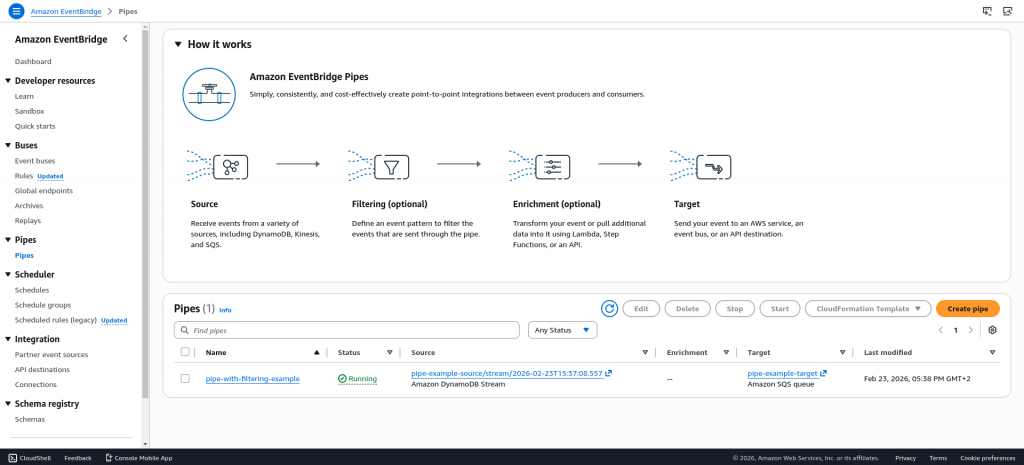
Now let’s navigate to Amazon EventBridge – Pipes and check the “pipe-with-filtering-example” status as shown below.
Step4: Generate Events from DynamoDB Stream
Navigate to DynamoDB table “pipe-example-source” and navigate to “Exports and streams” to check that the Stream status is enabled.
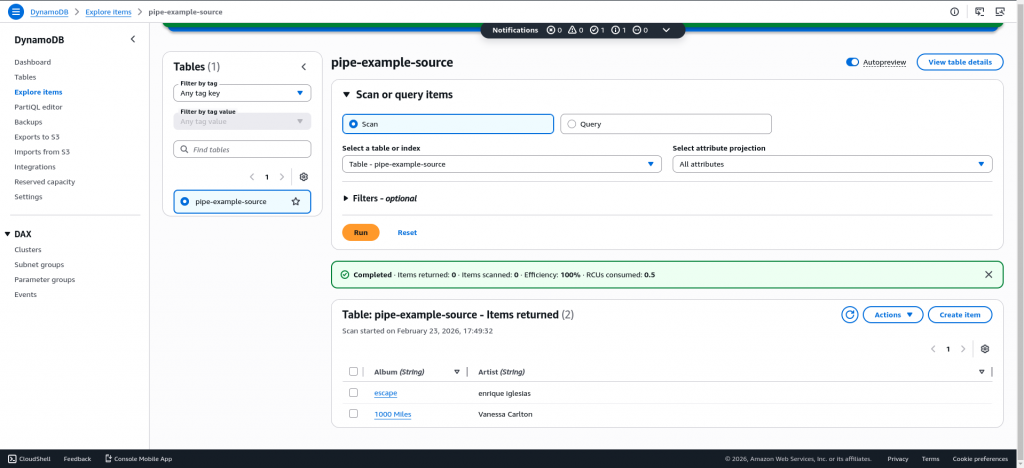
Now click on “Explore table items” at top right corner and click on “Create item” and insert few table entries by providing the Album and Artish names. Here are the sample items that i created in the DynamoDB table.
Step5: Validate Events through SQS queue
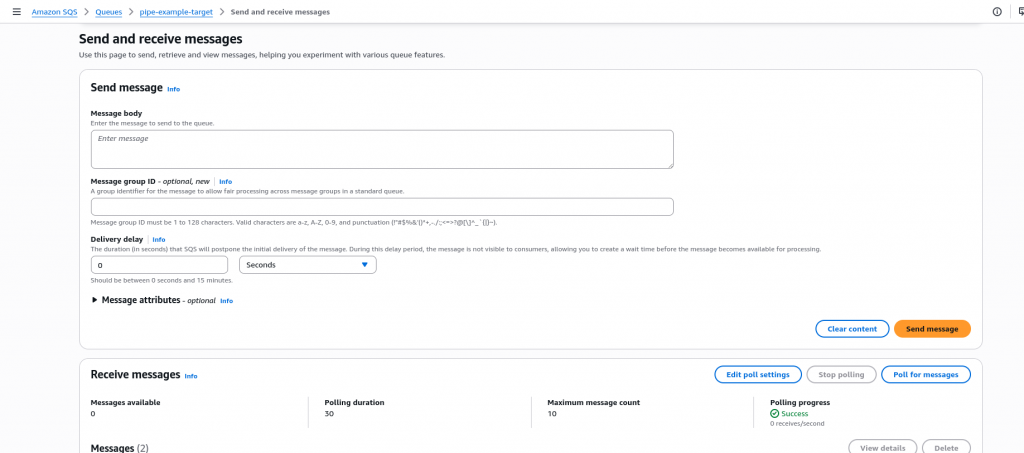
Navigate to Amazon SQS – Queues – pipe-example-target and click on “Send and receive messages”. In the Receive Messages section click on the “Poll for message” and you should be able to see two message delivered into the SQS queue as shown below.
Step6: Delete Stack
As a final step ensure that you delete your stack by navigating to CloudFormation console – Stacks to choose and delete your stack to avoid any charges.
Hope you enjoyed reading this article. Thank you..

Related Posts