How to leverage Kroki to convert text diagrams to images

Here in this article we will try to leverage Kroki an Open Source service that can be used to convert text diagrams to images.
Test Environment
- Fedora 41 server
- Docker v27.3.1
- Docker Compose v2.29.7
What is Kroki
Kroki is an open-source service and API that converts text-based descriptions (like PlantUML, Mermaid, Graphviz) into various visual diagrams (PNG, SVG, etc.), simplifying diagram creation by unifying multiple diagramming tools into one interface, often used in documentation and development workflow platforms such as GitLab and Power Automate.
Kroki Service Setup
Kroki is available as a free service from Exoscale or it can be installed locally as a self managed instance. It uses a set of Diagrams libraries which are written in a variety of languages: Haskell, Python, JavaScript, Go, PHP, Java… some also have C bindings.
If you are interested in watching the video. Here is the YouTube video on the same step by step procedure outlined below.
Procedure
Step1: Ensure Docker installed and running
As a first step ensure that you have docker and docker-compose installed on your system. You can following the official documentation from docker to install these tools.
Start up the docker services if its not already started.
admin@fedser:~$ sudo systemctl start docker.service
admin@fedser:~$ sudo systemctl status docker.service
Step2: Setup Kroki as docker service
Here in this step we will setup Kroki as docker container service using the DockerHub image “yuzutech/kroki” and exposed on port “8000” as shown below.
The kroki container image “yuzutech/kroki” provides the gateway server and a large number of diagram libraries immediately including PlantUML, GraphViz and more.
admin@linuxscratch:~/kroki$ docker run -d -p 8000:8000 --name kroki yuzutech/kroki
Verify the docker container is instantiated.
admin@linuxscratch:~/kroki$ docker ps
CONTAINER ID   IMAGE            COMMAND                  CREATED          STATUS          PORTS                                         NAMES
7c163ae4f1f4   yuzutech/kroki   "/bin/sh -c 'exec ja…"   26 minutes ago   Up 26 minutes   0.0.0.0:8000->8000/tcp, [::]:8000->8000/tcp   kroki
Step3: Create a Network diagram definition file
Let’s create a sample network diagram definition file as shown below.
admin@fedser:kroki$ cat sample.nw
nwdiag {
  network dmz {
    address = "210.x.x.x/24"

    web01 [address = "210.x.x.1"];
    web02 [address = "210.x.x.2"];
  }
  network internal {
    address = "172.x.x.x/24";

    web01 [address = "172.x.x.1"];
    web02 [address = "172.x.x.2"];
    db01;
    db02;
  }
}
Step4: Create Diagram using Kroki POST API
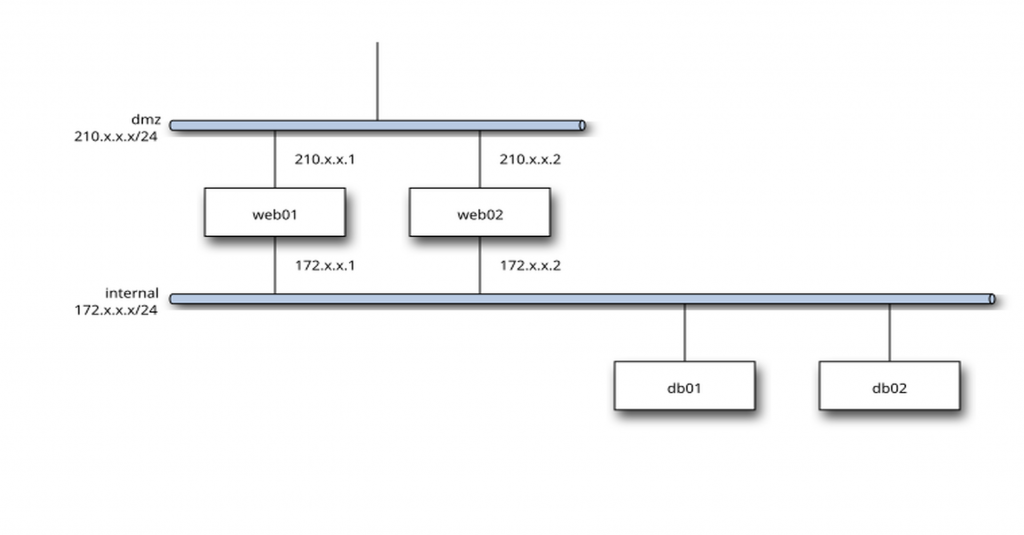
Here we are using the POST API for creating our network diagram by passing the the network diagram definition file to “/nwdiag/svg” endpoint to generate the file in svg format and save to “samplenetwork.svg“.
admin@fedser:kroki$ curl --request POST \
  --url http://linuxscratch.stack.com:8000/nwdiag/svg \
  --header 'content-type: text/plain' \
  --data '@sample.nw' \
  --output 'samplenetwork.svg'
Step5: Create Diagram using Kroki GET API
For using the GET API, the diagram definition file must be encoded in the URL using a deflate + base64 algorithm as shown below.
admin@fedser:kroki$ cat sample.nw | python -c "import sys; import base64; import zlib; print(base64.urlsafe_b64encode(zlib.compress(sys.stdin.read().encode('utf-8'), 9)).decode('ascii'))"
eNrLK0_JTExXqOZSUMhLLSnPL8pWSMmtAvMVFBJTUopSi4sVbBWUjAwN9CpAUN_IRIkLLFuemmRgqBCNRZGhUqw1XIkRViVGECW1SPZm5pWkFuUl5mBabmhuhLDcGpftMFV4bIcpMYIpSQEaAmcZQVxUywUAi8RJVg==
The above command will return string which can then be used in the url as shown below.
admin@fedser:kroki$ curl -X GET http://linuxscratch.stack.com:8000/nwdiag/svg/eNrLK0_JTExXqOZSUMhLLSnPL8pWSMmtAvMVFBJTUopSi4sVbBWUjAwN9CpAUN_IRIkLLFuemmRgqBCNRZGhUqw1XIkRViVGECW1SPZm5pWkFuUl5mBabmhuhLDcGpftMFV4bIcpMYIpSQEaAmcZQVxUywUAi8RJVg== --output samplenetwork2.svg
Step6: Validate the Image
Let’s now try to open our svg image file as shown below. If you do not have the necessary tools you can try to open it using the image viewer tools available on your machine.
admin@fedser:kroki$ display samplenetwork.svg
Step7: Enabling additional diagram support
If you want to use additional diagram libraries (such as BPMN, Excalidraw or Mermaid), then you will also need to start their companion containers.
Here is the sample docker compose file to enable support for “mermaid” diagram as shown below.
admin@fedser:kroki$ cat docker-compose.yml
services:
  kroki:
    image: yuzutech/kroki
    depends_on:
      - mermaid
    environment:
      - KROKI_MERMAID_HOST=mermaid
    ports:
      - "8000:8000"
    # If you do need to explicitly mount /tmp, make sure to include the exec option
    tmpfs:
      - /tmp:exec
  mermaid:
    image: yuzutech/kroki-mermaid
    expose:
      - "8002"
Hope you enjoyed reading this article. Thank you..


Related Posts