How to integrate GitLab with Diagram.net

Here in this article we will try to integrate gitlab with diagram.net to leverage creating architecture diagrams, workflows and many more within the GitLab projects wiki pages.
Test Environment
- Docker v27.3.1
- Docker Compose v2.29.7
- GitLab EE v18.6.1
- Diagram.net v29.2.7
What is Diagram.net
diagrams.net (formerly draw.io) is free online diagram software. You can use it as a flowchart maker, network diagram software, to create UML online, as an ER diagram tool, to design database schema, to build BPMN online, as a circuit diagram maker, and more. diagrams.net can import .vsdx, Gliffy™ and Lucidchart™ files.
If you are interested in watching the video. Here is the YouTube video on the same step by step procedure outlined below.
Procedure
Step1: Ensure Docker installed and running
As a first step ensure that you have docker and docker-compose installed on your system. You can following the official documentation from docker to install these tools.
Start up the docker services if its not already started.
admin@fedser:~$ sudo systemctl start docker.service
admin@fedser:~$ sudo systemctl status docker.service
Step2: Setup Diagram.net server
Here we will be using a very basic docker compose file as shown below to launch our self hosted diagram.net server. It will be exposed on HTTP port 8080.
admin@fedser:drawio$ cat docker-compose.yml
services:
  drawio:
    image: "jgraph/drawio:29.2.7"
    container_name: drawio
    ports:
    - "8080:8080"
    - "8443:8443"
Let’s start up the diagram.net service and validate it.
admin@fedser:drawio$ docker compose up -d
URL: http://fedser.stack.com:8080/
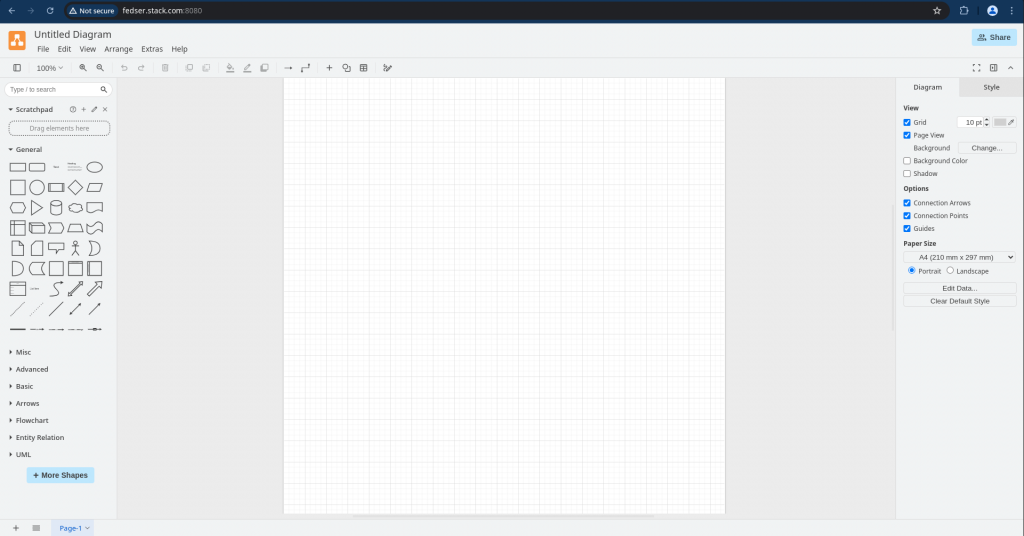
Step3: Setup GitLab server
Here in this step we will be launching GitLab service using the docker compose file. You can follow “Install GitLab in a Docker container” for the same and complete the setup with an Administrator account.
Also create a non administrative account for developer to work on gitlab to manage projects.
Docker Compose file:
admin@fedser:gitlab-latest-docker$ cat docker-compose.yml
services:
  gitlab:
    #image: "gitlab/gitlab-ee:latest"
    image: "gitlab/gitlab-ee:18.6.1-ee.0"
    container_name: gitlab
    hostname: "fedser.stack.com"
    ports:
    - "443:443"
    - "80:80"
    - "22:22"
    volumes:
      - '$GITLAB_HOME/config:/etc/gitlab'
      - '$GITLAB_HOME/logs:/var/log/gitlab'
      - '$GITLAB_HOME/data:/var/opt/gitlab'
Let’s now start up gitlab service and validate it
admin@fedser:gitlab-latest-docker$ docker compose up -d
URL: http://fedser.stack.com
Step4: Integrate GitLab with Diagram.net
Login with Administrator account into GitLab portal. Navigate to Admin Area – Settings – General – Diagrams.net and update the url for your Diagram.net server as shown below and save the changes.
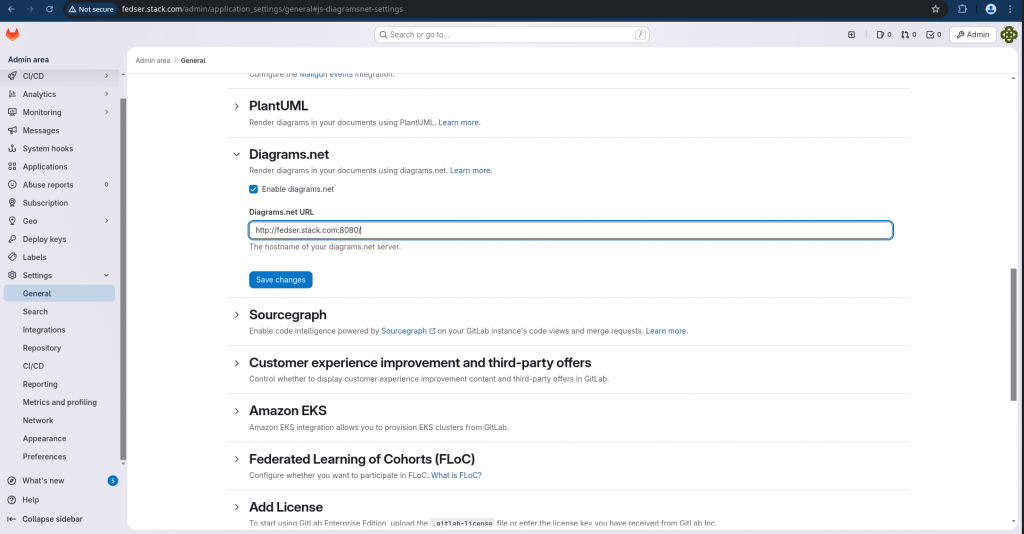
Step5: Validate Diagram.net Integration
Login with Developer Account and Go to your sample project and create your first Wiki Page as shown below.

In the new Wiki page template, you can now create or edit diagram using the diagram.net.
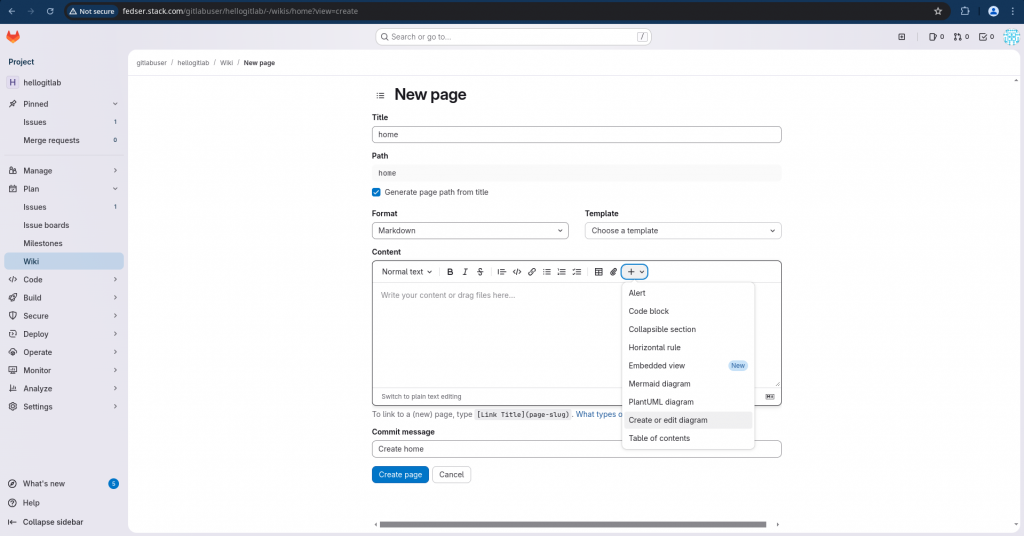
You will now be navigated to the diagram.net site to build your diagrams.
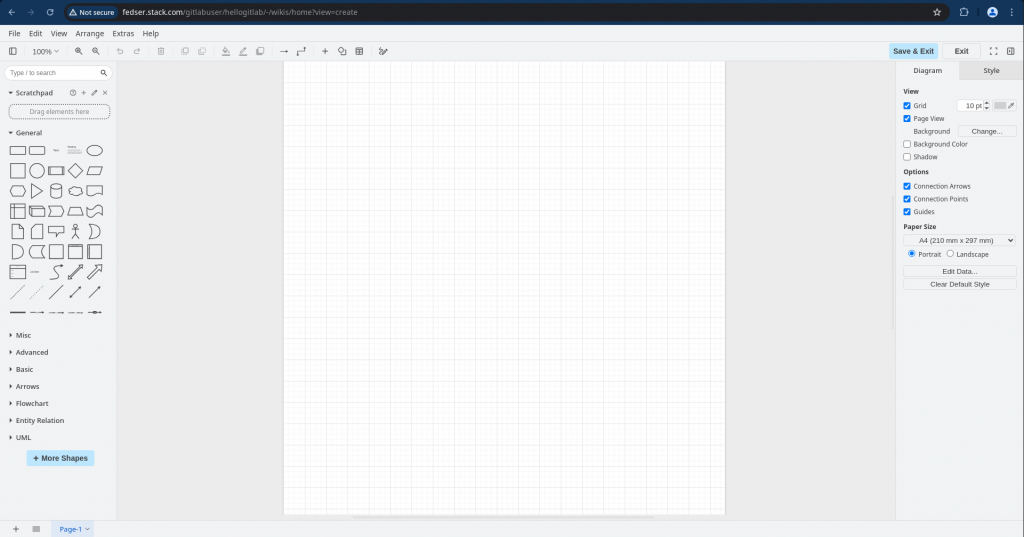
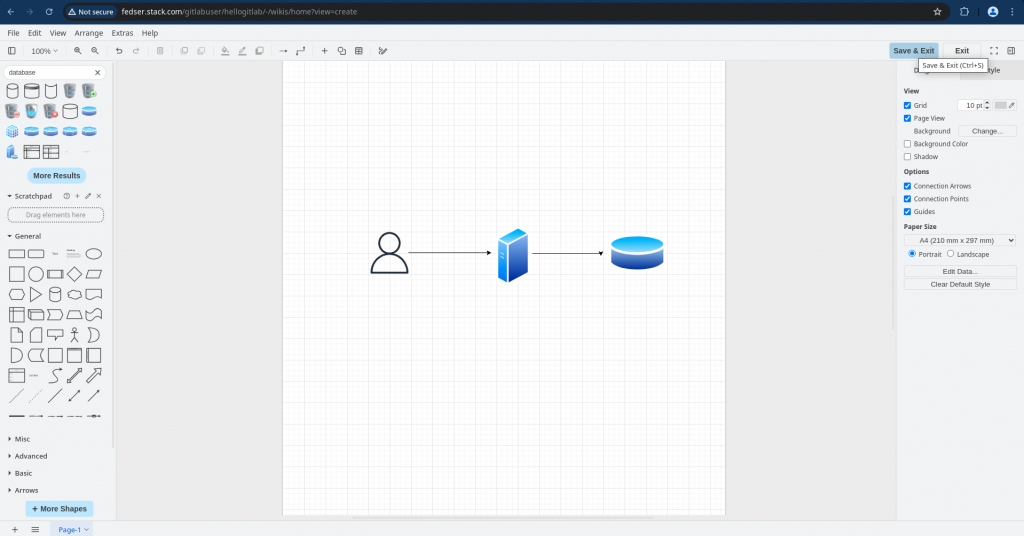
Once the diagram is created and embedded into your Wiki page, you can save the page.
Now you should be able to see you page as shown below.

Hope you enjoyed reading this article. Thank you..



Related Posts